How to Remove Extra Spaces in Google Sheets (TRIM, CLEAN & More)
Extra spaces are the most common reason a spreadsheet looks right but
behaves wrong: lookups return #N/A, filters split "Acme" and "Acme "
into two categories, and duplicates refuse to be detected. Here’s every way
to clean them up in Google Sheets, from fastest to most thorough.
The fastest fix: the built-in Trim whitespace tool
Select your range (or entire columns), then:
Data → Data cleanup → Trim whitespace
Google Sheets removes leading spaces, trailing spaces, and repeated mid-text spaces in place — no formulas, no helper columns. If this solves it, you’re done.
Two limitations: it edits the cells directly (there’s no preview of what changed), and it doesn’t touch the invisible characters covered below.
The formula way: TRIM
To clean into a new column so you can inspect the results first:
=TRIM(A2)TRIM removes spaces at the start and end, and collapses runs of spaces
inside the text down to one. To process an entire column with a single
formula, put this in the first row of a helper column:
=ARRAYFORMULA(TRIM(A2:A))When you’re satisfied, copy the helper column and paste it over the original with Edit → Paste special → Values only (otherwise you’d paste formulas that point at cells you’re about to delete), then remove the helper column.
When TRIM isn’t enough
Some “spaces” aren’t the space character at all, and TRIM ignores them:
-
Non-breaking spaces (
CHAR(160)) — extremely common in data copied from web pages. Replace them first:=TRIM(SUBSTITUTE(A2, CHAR(160), " ")) -
Line breaks, tabs, and other non-printing characters — common in CSV exports and pasted text.
CLEANstrips them:=TRIM(CLEAN(A2)) -
The kitchen-sink version for badly mangled data:
=TRIM(CLEAN(SUBSTITUTE(A2, CHAR(160), " ")))
A quick diagnostic: =LEN(A2) before and after cleaning shows you whether
invisible characters were actually removed — if LEN doesn’t change,
what’s in the cell isn’t a character these functions target.
Why this matters more than it looks
Stray whitespace is the classic cause of a
VLOOKUP returning #N/A even
though you can see the matching value — "SKU-104 " and "SKU-104" are
different strings. If a lookup, COUNTIF, or duplicate check is
misbehaving, trim both the lookup keys and the source column before
debugging anything else.
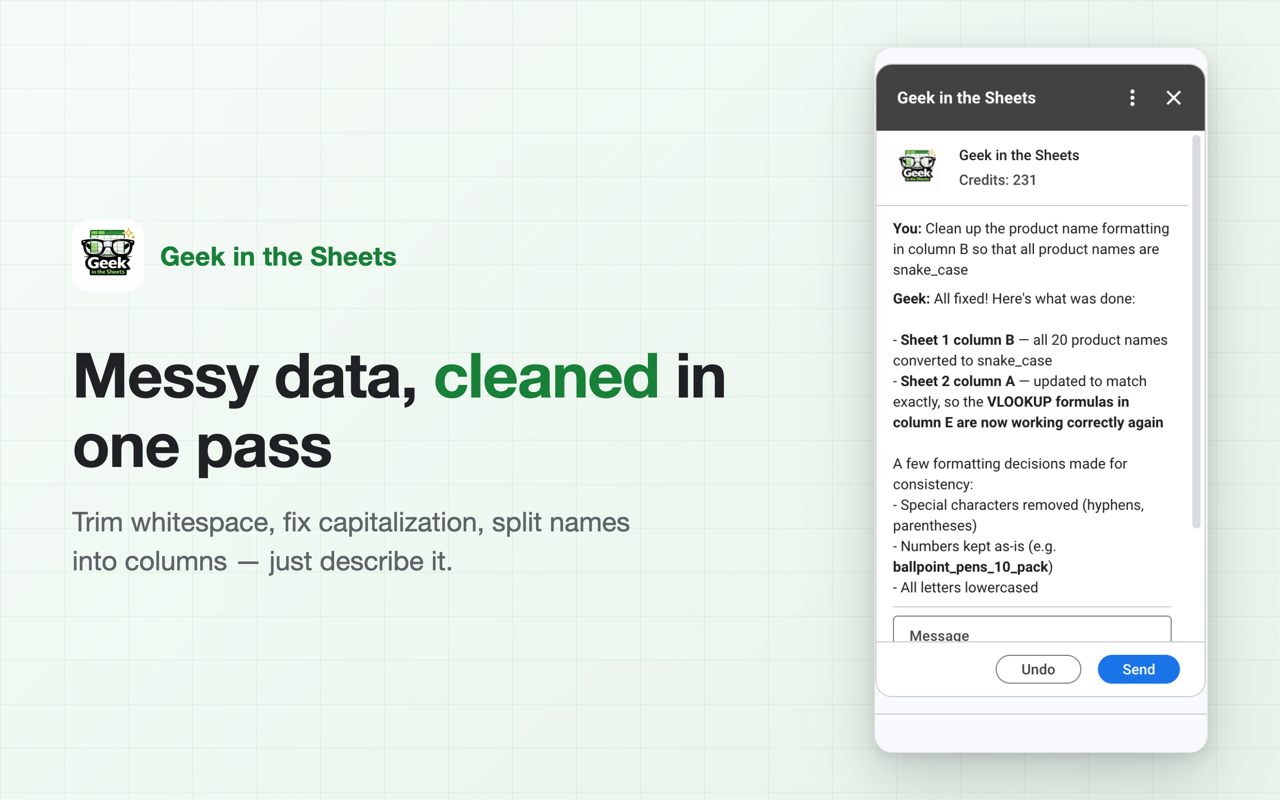
The Geek way: one sentence
With Geek in the Sheets open in the sidebar, the whole cleanup — extra spaces, weird invisible characters, helper columns and all — is:
“Clean up the whitespace in column A — trim extra spaces and remove any non-breaking spaces or line breaks.”
It reads the column, fixes the values in place, and tells you what it changed — and if anything looks off, one click undoes it.